Forwarding your domain to a specific subfolder on your hosting account—while keeping the original domain visible in the browser—can be tricky, especially when working with WordPress.
In this guide, you’ll learn how to use Cloudflare to seamlessly forward your domain to a WordPress installation located in a subfolder, without exposing the subfolder path in the URL. Whether you’re organizing multiple sites under one domain or just want cleaner URLs, this step-by-step tutorial has you covered.
Why you should use CloudFlare to Forward your domain URL to a subfolder?
Cost-Efficient
Save money by avoiding the need for multiple hosting plans—run multiple sites under one hosting package.
Centralized Management
Manage all your WordPress installations, files, and databases from a single hosting control panel.
Independent Websites
Each subfolder can host a fully separate WordPress site with its own theme, plugins, and content.
Separate Databases
Maintain performance and data isolation by assigning a unique database to each WordPress install.
Flexible Domain Mapping
Use tools like Cloudflare to map different domains to specific subfolders, making each site appear as a standalone website.
Efficient Use of Resources
Share disk space and bandwidth across all your sites, maximizing the value of your hosting plan.
Ideal for Agencies & Freelancers
Host client sites or project demos separately without purchasing new plans for each one.
Step 1: Add Your Domain to Cloudflare and Update Nameservers
- Create a Cloudflare account (if you don’t already have one) by visiting cloudflare.com.
- Add your domain to Cloudflare by entering it in the dashboard and selecting a plan (the free plan is usually sufficient).
- Scan and confirm your DNS records — Cloudflare will automatically detect existing DNS settings. Review and make sure everything is correct.
- Update your domain’s nameservers:
- Cloudflare will provide two custom nameservers.
- Log into your domain registrar (e.g., GoDaddy, Namecheap, etc.) and replace the current nameservers with the ones provided by Cloudflare.
- Wait for DNS propagation, which can take anywhere from a few minutes to 24 hours. Cloudflare will notify you once your domain is active on their network.
Step 2: Create a Subfolder in File Manager and Install WordPress
- Log into your hosting control panel (e.g., cPanel, DirectAdmin, etc.).
- Open the File Manager and navigate to the root directory of your domain (usually
public_html). - Create a new subfolder — for example,
/blog,/site, or any name you prefer. - Download the latest version of WordPress from wordpress.org if you haven’t already.
- Upload and extract the WordPress zip file into the subfolder you just created.
- Create a new MySQL database (via your hosting control panel):
- Create a new database.
- Create a new database user and assign it to the database with full privileges.
- Run the WordPress installer by visiting
yourdomain.com/subfolder-namein your browser. - Complete the installation wizard:
- Enter your database name, username, and password.
- Choose a site title, admin username, and password.
- Finalize the setup.
Once done, your new WordPress site will be live at yourdomain.com/subfolder-name. Alternatively use your hosting control panel to install WordPress and your database automatically to a subfolder.
Step 3: Create Cloudflare Page Rules to Forward Your Domain to the Subfolder
To make your domain (yourdomain.com) point to a WordPress install in a subfolder (e.g., yourdomain.com/blog) without showing the subfolder in the URL, you’ll need to create two Cloudflare Page Rules:
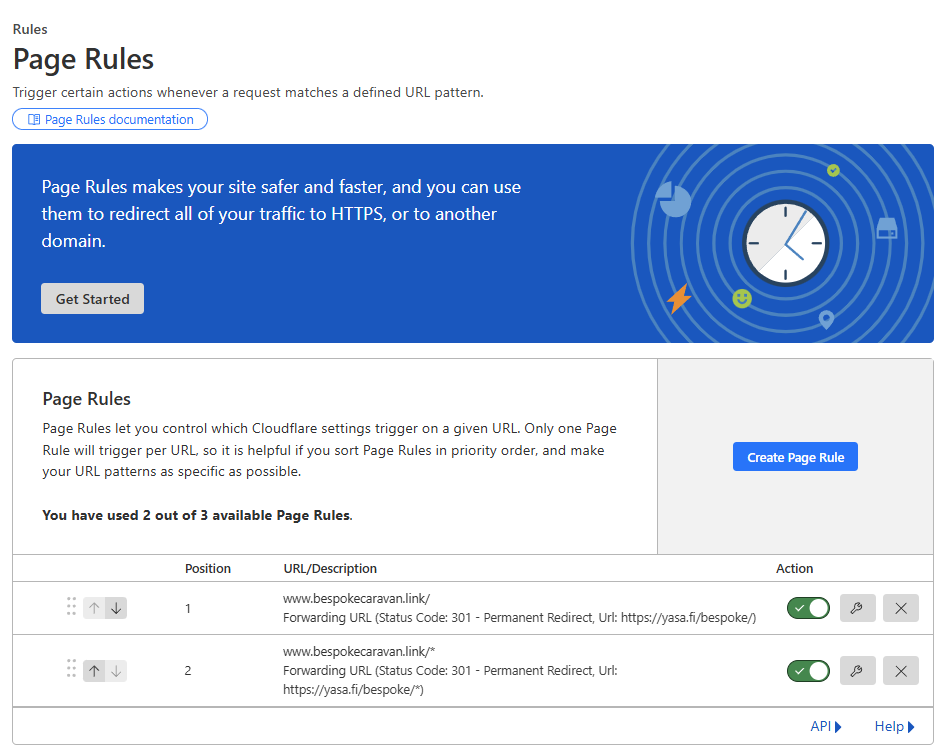
🔧 1. Forward all traffic (including subpages) to the subfolder
- Go to your Cloudflare dashboard > Rules > Page Rules
- Click “Create Page Rule”
- Set the URL pattern:
yourdomain.com/* - Choose the setting:
“Forwarding URL” → “301 Permanent Redirect” - Enter the destination URL:
https://yourdomain.com/blog/* - Click “Save and Deploy”
🔧 2. Forward all traffic (including main pages) to the subfolder
- Go to your Cloudflare dashboard > Rules > Page Rules
- Click “Create Page Rule”
- Set the URL pattern:
yourdomain.com/ - Choose the setting:
“Forwarding URL” → “301 Permanent Redirect” - Enter the destination URL:
https://yourdomain.com/blog/ - Click “Save and Deploy”
Note: You have to create to rules, one with /* ending and one with /.
Step 4: Add an Additional 301 Redirect Using a Wildcard Pattern in Cloudflare
To ensure all traffic is consistently redirected to a specific subfolder, you must add a separate 301 redirect using Cloudflare’s Redirect Rules with a wildcard route.
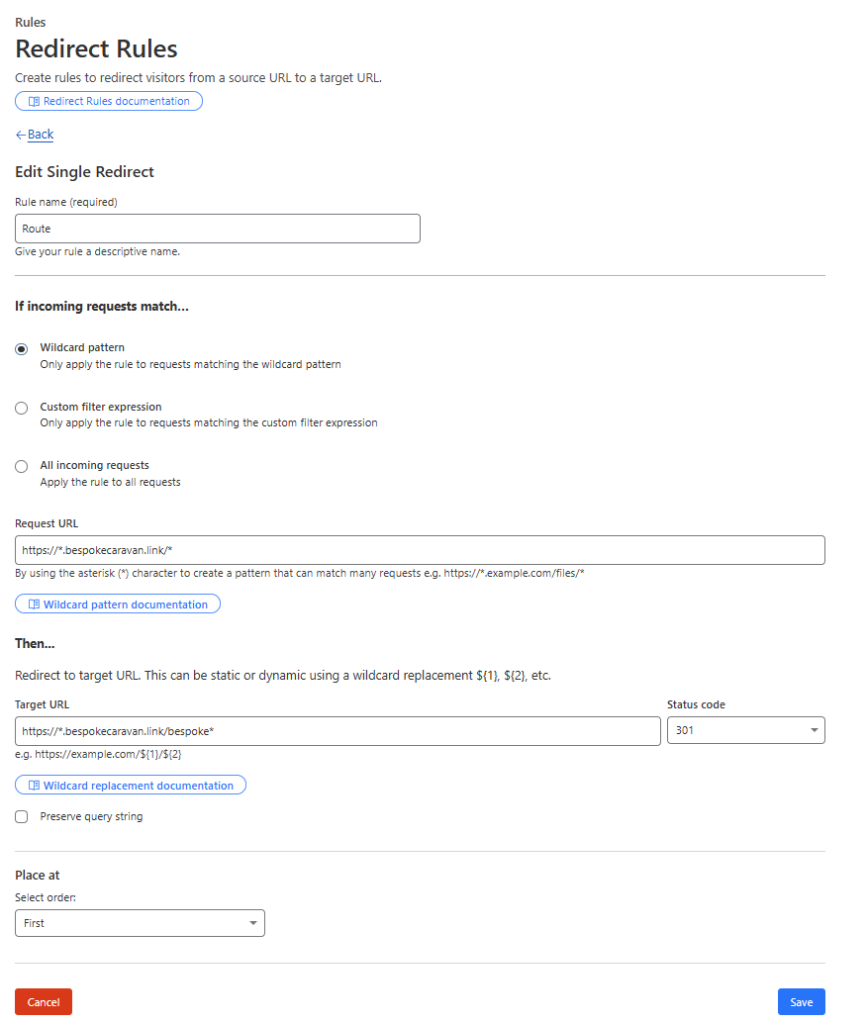
✅ Instructions:
- In your Cloudflare dashboard, go to Rules > Redirect Rules.
- Click “Create Rule.”
- Set the Route using a wildcard pattern:
https://*.example.com/*(Replaceexample.comwith your actual domain name.) - In the rule conditions, match all requests (or optionally add specific filters if needed).
- Under “Then…”, set:
- Action:
Redirect - Status Code:
301 – Permanent Redirect - Destination URL:
https://*.example.com/subfoldername/*
- Action:
- Click “Save”.
Final Step: Update WordPress Site URLs to the Subfolder
To ensure your WordPress site works correctly both in the backend and frontend, update the site URLs to reflect the subfolder location:

- Log in to your WordPress admin dashboard (
https://example.com/subfoldername/wp-admin). - Navigate to Settings > General.
- Update the following fields:
- WordPress Address (URL):
https://example.com/subfoldername - Site Address (URL):
https://example.com/subfoldername
- WordPress Address (URL):
- Scroll down and click Save Changes.
✅ Note:
Updating these URLs ensures WordPress correctly loads assets, links, and admin pages from the subfolder path.
If you have issues accessing the admin after the change, you can also update these URLs directly in the wp-config.php file or the database.